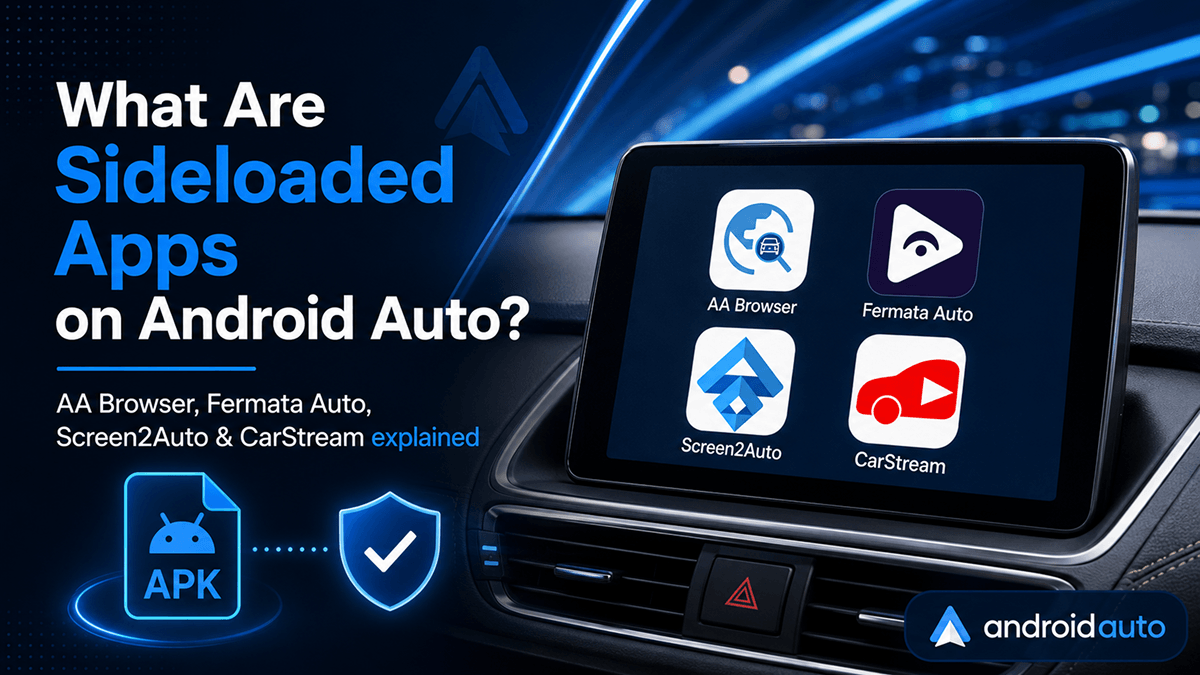
If you have ever connected your phone to your vehicle's infotainment system, you know how convenient Android Auto can be for navigation and music. But many drivers also feel frustrated by Google's strict limitations on what the car's display can actually do. Google intentionally restricts the official in-car Play Store catalog, leaving users with a highly limited selection of approved navigation and music apps.
That is where sideloading comes in. Sideloading allows you to bypass the official Play Store and install unofficial, third-party apps directly onto Android Auto. In this comprehensive guide, we will break down exactly what sideload apps are, the best ones to use, and how you can set them up safely on your vehicle.
The Top 4 Sideloaded Android Auto Apps You Should Try in 2026
If you want to move beyond basic navigation and audio apps, these four sideloaded tools are the most popular and useful options available today.
1. Fermata Auto – The Ultimate All-in-One Media Hub
If you only install one unofficial app, make it Fermata Auto. This application functions as an absolute powerhouse and all-in-one media toolkit for your car.
What It Does:
- Plays locally stored video and audio files from your phone or USB drive
- Streams live TV via IPTV links
- Features dedicated tabs for YouTube and web browsing that operate smoothly
- Supports screen mirroring functionality
Fermata Auto combines multiple functions into a single app, eliminating the need to install separate tools for YouTube, browsing, and media playback. Many users report that its YouTube and browsing tabs work even better than standalone single-purpose apps like CarStream or AA Browser.
Performance Notes:
Fermata Auto is highly recommended and generally stable across most Android Auto setups. It is an excellent choice for drivers who want maximum functionality without installing multiple apps.
2. CarStream – The Dedicated YouTube Player
While Google plans to roll out official YouTube support eventually, it will initially be restricted to a handful of select, newer vehicle models. These include certain BMW, Ford, Genesis, Hyundai, Kia, Mercedes-Benz, Renault, and Volvo cars.
CarStream brings YouTube to any vehicle that supports Android Auto, regardless of whether your car is officially supported by Google's YouTube integration.
What It Does:
- Mirrors the mobile YouTube interface on your car screen
- Let's you search for videos using your phone's keyboard
- View your subscriptions and watch vertically filmed YouTube Shorts
- Play music videos, tutorials, and other content while parked
CarStream provides a car-optimized YouTube experience with familiar navigation and search functionality. You can type search queries using your phone and control playback from your car's touchscreen or steering wheel controls.
Performance Notes:
CarStream requires a solid data connection for smooth streaming. Some users report occasional freezing or blank canvas issues, particularly on slower connections or with certain Android versions.
3. AA Browser – Full Web Surfing on the Road
By default, Android Auto does not include an internet browser. AA Browser solves this by putting a full-fledged web browser on your dashboard, complete with a URL bar and navigation buttons.
What It Does:
- Provides a complete web browsing experience on your car screen
- Features large, car-friendly buttons and interface elements
- Allows you to log into streaming portals like Netflix that do not have official car apps
- Useful for quick lookups without pulling out your phone
AA Browser is incredibly useful for those "just let me look that up" moments when you are parked and need quick access to information. It also enables access to web-based streaming services that lack dedicated Android Auto apps.
Performance Notes:
AA Browser can get slightly glitchy or slow to load depending on your internet connection quality. Some users report occasional UI lag, but overall, it remains functional for basic browsing tasks.
4. Screen2Auto – Complete Phone Screen Mirroring
For those who want complete freedom, Screen2Auto casts your smartphone's entire display directly onto your car's infotainment screen.
What It Does:
- Mirrors literally any application or webpage currently active on your connected phone
- Displays your phone's interface exactly as it appears on your mobile device
- No need for separate logins or app-specific installations
Screen2Auto is the simplest way to display any content from your phone without needing workarounds for individual apps. If an app works on your phone, it will display on your car screen through Screen2Auto.
Performance Notes:
Screen2Auto requires heavy permissions and can be buggy. Some users report needing to unplug and replug the cable frequently or experiencing occasional disconnections during use.
Sideload App Feature Comparison Table
| App Name | Primary Function | Standout Feature | Known Issues / Performance |
|---|---|---|---|
| Fermata Auto | Multi-format media player | Plays local files, IPTV, and has built-in YouTube/browsing tabs | Highly recommended and generally stable across most setups |
| CarStream | YouTube player | Search, view subscriptions, and watch Shorts directly on car screen | Requires solid data connection; can occasionally freeze or show blank canvas |
| AA Browser | Web browsing | Large, car-friendly browser UI; logs into Netflix and other streaming portals | Can get slightly glitchy or slow to load depending on connection quality |
| Screen2Auto | Direct phone mirroring | Mirrors literally any app active on your connected phone screen | Requires heavy permissions; can be buggy and require unplugging the cable |
What Exactly Are Sideload Apps on Android Auto?
By utilizing specialized downloaders like AAStore, AAAD (Android Auto Apps Downloader) and enabling developer settings, users can run advanced apps directly on their car's dashboard. These include web browsers, video streaming players, and screen-mirroring tools that Google does not officially approve for in-car use.
Think of sideloading as unlocking hidden features on your car's infotainment system. Instead of being limited to Google-approved apps like Spotify, Google Maps, or WhatsApp, you can install tools that let you watch YouTube on Android Auto, browse websites, or even mirror your entire phone screen onto your car display.
Android Auto vs. Android Automotive OS (AAOS)
Before diving into specific apps, it is crucial to understand a major point of confusion. Sideloading works differently depending on whether you are using Android Auto or Android Automotive OS (AAOS).
What Is Android Auto?
Android Auto runs on your smartphone and mirrors its display to your car's infotainment screen. It works on almost any vehicle that supports standard Android Auto connectivity, whether through USB cable or wireless connection.
What Is Android Automotive OS (AAOS)?
Android Automotive OS is built directly into the car's hardware. It runs natively on select modern models from manufacturers like Polestar, Volvo, General Motors, Volkswagen ID series, Honda, and Ford.
Key Differences at a Glance
| Feature | Android Auto | Android Automotive OS (AAOS) |
|---|---|---|
| Where It Runs | On your smartphone, mirrored to car screen | Directly on car's built-in computer hardware |
| How Sideloading Works | Bypasses phone's Android Auto restrictions via specialized launchers like AAAD | Direct APK installation using native file managers like AnExplorer via USB or WiFi |
| Compatible Cars | Works on almost any vehicle with standard Android Auto support | Built natively into select modern models (Polestar, Volvo, GM, VW ID series, Honda, Ford, etc.) |
| File Management | No direct file access on the car head unit | Full file management support (USB drives, cloud storage, and local transfer) |
| Installation Method | Install AAAD on phone, then download apps through it | Copy APK to USB drive or transfer via WiFi, then install using car's file manager |
Understanding which system your vehicle uses is essential because the sideloading process differs significantly between the two. Most drivers with older or mid-range vehicles will be using Android Auto, while owners of newer premium models may have AAOS built in.
Step-by-Step Guide: Install AAStore and Download Android Auto Sideload Apps
Step 1: Access AAStore
Option A: Scan QR Code
- Use your Android phone camera or QR scanner to scan the AAStore QR code from their official website
- After scanning, tap the link that appears on your phone
Option B: Visit Website Directly
- Open your phone's web browser
- Navigate to https://aastore.app/
- Look for the download or installation link
Step 2: Download AAStore APK
- The AAStore app page will open on your phone
- Tap the Download button to get the APK file
- Wait for the download to complete (file size is typically small, around 5-10 MB)
Step 3: Install AAStore on Your Phone
- Once downloaded, tap the APK file to open the installer
- If prompted, allow installation from unknown sources for your browser or file manager
- Tap Install and wait for the installation to complete
- Tap Done or Open to launch AAStore
Step 4: Choose Your Plan
- AAStore may offer different plans based on how many apps you want to activate
- Select the plan that matches your needs
- Complete the one-time purchase if required
- You will receive a confirmation email after checkout
Step 5: Register and Activate Your Account
- Open AAStore on your phone
- Go to the Account tab
- Enter the email address you used during checkout (if you purchased a plan)
- Tap Verify
- After verification, your plan will activate and your app slots will unlock
Step 6: Browse and Find Your Desired App
- Inside AAStore, browse the app catalog or use the search option
- Popular apps available may include:
- Fermata Auto – All-in-one media player
- CarStream – YouTube player
- AA Browser – Web browser for Android Auto
- Screen2Auto – Phone screen mirroring
- AA Torque – Performance dashboard
- Find the app or solution you want and open its app page
Step 7: Download Your Preferred APK
- Tap the Download or Install button on the app page
- Wait while AAStore downloads the selected APK file to your Android phone
- Download time depends on your internet speed and app size
Step 8: Install the APK on Your Phone
- When the Android installer opens, tap Install
- Wait for the installation to complete
- Tap Done or Open after installation finishes
Step 9: Connect Your Phone to Android Auto
- Crucial Step: Disconnect your phone from your car before installing apps, then reconnect after installation
- Connect your Android phone to your car using USB or wireless Android Auto
- Open Android Auto on your car display
- Your installed app should now be available in the Android Auto launcher
Step 10: Access and Use Your New App
- Look for the newly installed app icon in your Android Auto app grid
- Tap the app to launch it on your car's display
- Follow any in-app setup instructions if required
Safety and Risk Warnings: What You Need to Know Before Sideloading
While sideloading is exciting and opens up new possibilities for your car's infotainment system, it is incredibly important to keep safety and system stability in mind.
Safety First: Never Use While Driving
Never use video streaming or web browsers while operating the vehicle. These apps are strictly meant for entertainment while safely parked, such as when:
- Waiting in school pick-up lines
- Sitting in ferry queues
- Charging an electric vehicle
- Waiting for passengers at airports or train stations
Always make sure your car is securely parked before opening any entertainment or browsing app.
Glitchiness and Stability Issues
Sideloaded apps are third-party workarounds and are not officially supported by Google or your vehicle manufacturer. They can:
- Freeze unexpectedly
- Fail to load content
- Show black or blank screens
- Require frequent cache clearing or phone restarts
- Need cable replugging to refresh the connection
Occasionally, you may need to clear your cache, restart your phone, or replug your connection to restore functionality.
Android 14+ Compatibility Concerns
Some newer Android OS updates (particularly Android 14 and later versions) are less compatible with traditional sideloading workarounds. This may cause certain apps not to load properly or display error messages.
If you recently updated your phone's operating system and sideloaded apps stop working, you may need to wait for app developers to release compatibility updates.
Google's Ongoing Security Updates
Google periodically rolls out security updates designed to block uncertified sideloaded apps from running on certified vehicle displays. Consider these apps as fun, functional experiments rather than permanent fixtures in your daily driving routine.
Future Android Auto updates could potentially disable sideloading functionality entirely, so always have a backup plan for in-car entertainment.
Frequently Asked Questions (FAQs)
Q: Do I need to root my Android phone to sideload Android Auto apps?
A: No. You do not need root access to use these apps. You only need to unlock the standard Developer Settings on your mobile phone and within the Android Auto app itself. Rooting your phone can void warranties and introduce security risks, so it is not recommended for sideloading Android Auto apps.
Q: Can I watch YouTube videos while driving?
A: No. While some apps like CarStream are technically capable of playing media on the go (for passengers), you should never watch videos while driving. Always make sure your car is securely parked before opening any entertainment or browsing app. Many apps also include safety locks that prevent video playback when the vehicle is in motion.
Q: Why doesn't my sideloaded app show up on my car's screen launcher?
A: If you just installed an app and it is not appearing, try these troubleshooting steps:
- Disconnect your phone's cable or wireless connection from your vehicle and reconnect it
- Restart your phone completely to refresh the launcher cache
- Ensure that "Unknown Sources" is checked in your Android Auto developer settings
- Clear the Android Auto app cache in your phone's settings
- Reinstall the app through AAStore if problems persist
Additionally, ensure that your phone is properly connected and Android Auto is actively running before checking for new apps.
Q: What is the best alternative to sideloading if I find it too glitchy?
A: If you find the sideloading process too brittle or buggy, many drivers prefer a safer, simpler workaround: mounting a cheap, portable tablet (like an Amazon Fire HD) in the vehicle. This allows passengers to stream, browse, and play games using your phone's hotspot without affecting your primary navigation system.
Other alternatives include:
- Using your phone's built-in hotspot to connect a separate device
- Installing a dedicated aftermarket head unit with more open app support
- Sticking to official Android Auto apps for maximum stability
Q: Will sideloading void my car's warranty?
A: Generally, no. Sideloading apps on Android Auto does not modify your vehicle's factory software or hardware. However, if you experience issues with your infotainment system, dealerships may ask you to uninstall unofficial apps before providing support.
Q: Can I use these apps with wireless Android Auto?
A: Yes, most sideloaded apps work with both wired and wireless Android Auto connections. However, wireless connections may introduce additional latency or stability issues, particularly for video streaming apps like CarStream.